


 FTBOA.com includes a built-in accessibility tool that converts any article into spoken audio, allowing hands-free listening for any article.
How to Use It:
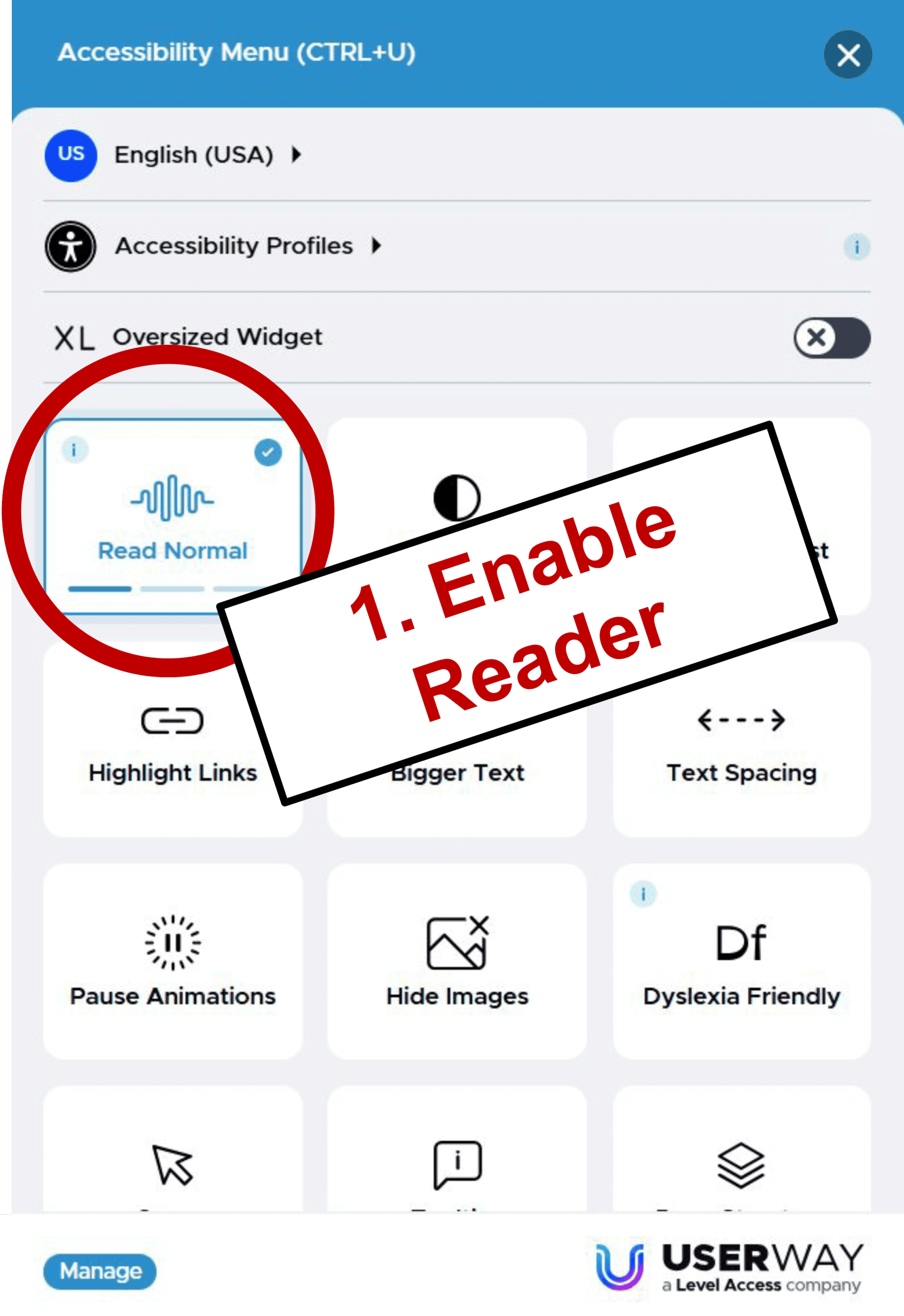
- Look for the blue accessibility icon (a blue figure with outstretched arms) along the edge of your browser window.
- Click the icon to open the UserWay Accessibility Menu.
- Select “Screen Reader” from the available options.
- Once activated, the tool reads aloud page content. Use your arrow keys to navigate between elements.
Pro Tip for Cleaner Playback (Desktop):
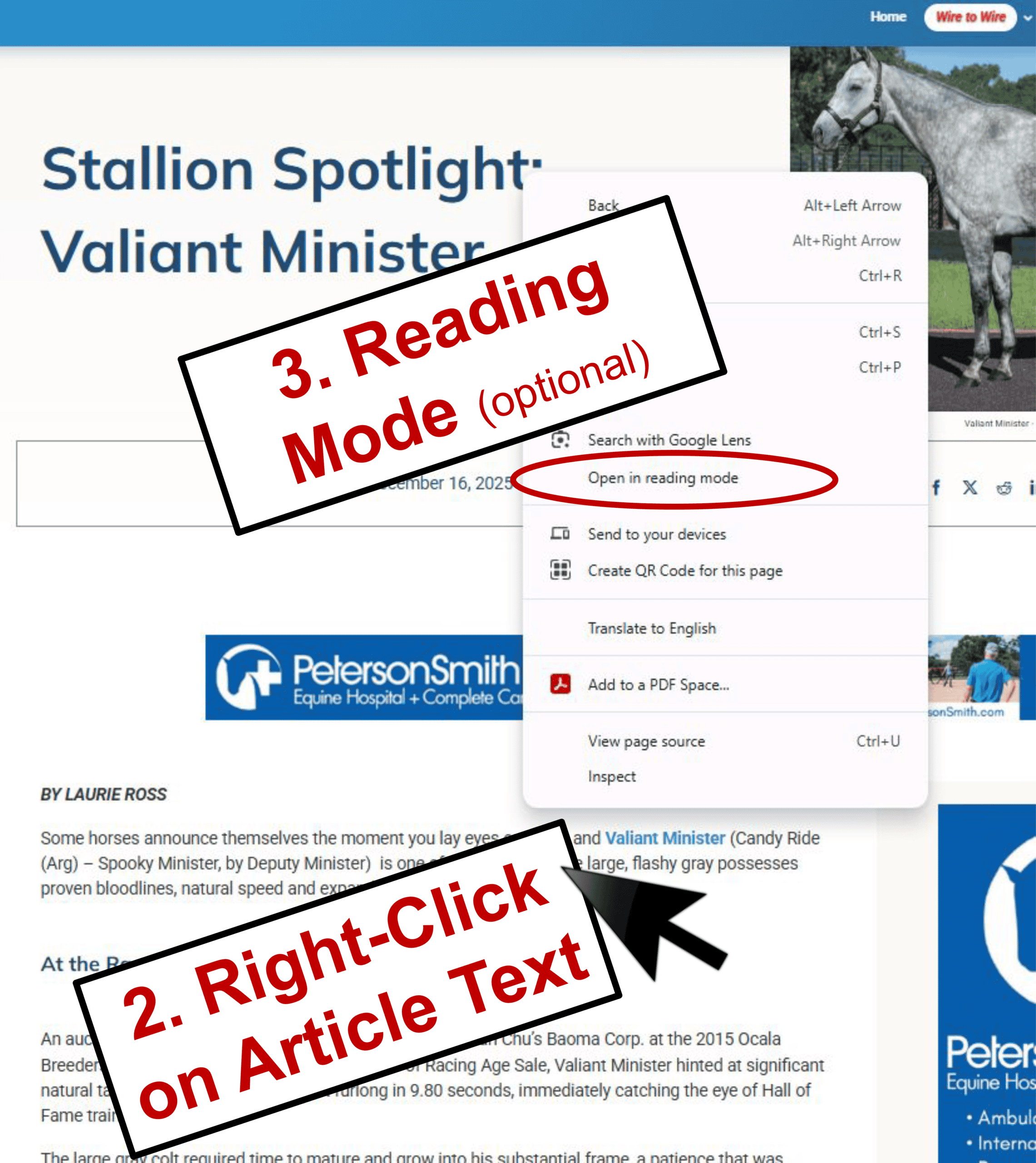
For the best listening experience on a computer, open the article in your browser’s “Reading Mode” first. This removes menus, sidebars, and ads so the reader focuses only on the article text.
- Chrome: Right-click on the article text and select “Open in Reader Mode”
- Safari: Click “Reader” at the left end of the address bar
- Edge: Press F9 or click the book icon in the address bar
- Firefox: Click the page icon in the address bar
Mobile Users:
The screen reader works on mobile devices, though it will read more page elements beyond just the article text. iPhone and iPad users browsing in Safari can tap the “Reader” button (left side of the address bar) before activating the screen reader for a cleaner experience. Android users can activate the screen reader directly from the accessibility menu.
Tutorial Images:
Click to enlarge images and scroll
Return to the December 16 issue of Wire to Wire